Basketball Arcade Guides
Basketball Arcade Game Controls: A Complete Reference
Every keyboard, mouse and touch control used across the site, in one reference — plus what to do when a control is not working.
Every game on this site shares one control layer, so learning it once covers all six. This page is the full reference, including the parts that are easy to miss.
The universal controls
These work identically in every game.
| Action | Keyboard | Touch / mouse |
|---|---|---|
| Start a game | Space | Tap the court or press Play |
| Main action (shoot / jump / bounce) | Space, Enter, ↑ or W | Tap the court, or the large on-screen button |
| Pause and resume | P or Esc | Pause button above the court |
| Restart | R | Restart button |
| Mute sound | — | Sound button above the court |
Pausing also happens automatically when you switch tabs or the window loses focus, so a 60-second clock never runs down while you are elsewhere.
Per-game controls
Basketball Shooting Challenge
The only game with full two-axis aiming.
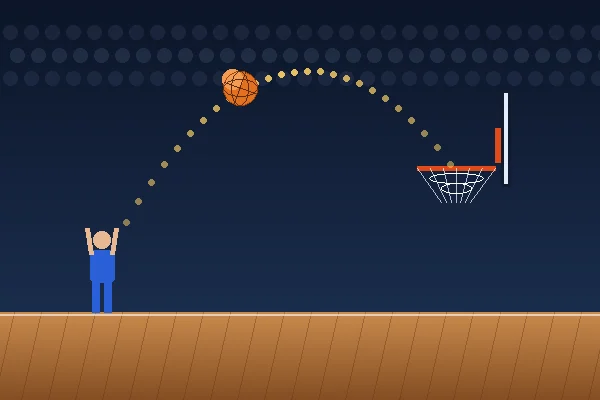
- Drag from the shooter towards the hoop. The direction sets the angle, the distance sets the
power. Release to shoot.
- Keyboard: ↑ and ↓ change angle, ← and → change power, Space shoots.
- Touch: drag on the court, or use the Angle + / Angle − and Shoot buttons.
The dotted preview updates live as you aim, so you can see the result before committing.
3-Point Basketball Challenge
- One button. Space, a tap, or the Release button stops the sweeping power meter.
- Angle is fixed at 56 degrees; power is the only variable.
Dunk Challenge
- Jump: Space, ↑, W, a tap, or the Jump button.
- Brake: hold ← or A, or the Brake button.
- Sprint: hold → or D, or the Sprint button.
Brake and sprint are held, not tapped — they change your run speed continuously.
Basketball Hoop Rush
- One button. Each press bounces the ball upward. Space, ↑, W, a tap, or the
Bounce button.
Basketball Precision Shot
- One button. The release angle sweeps on its own; Space or a tap releases the shot.
Basketball Time Attack
- Hold and release. Hold Space, hold on the court, or hold the Hold to charge button.
Power charges while held and fires when you let go.
This is the only game where the input has a duration rather than being instantaneous, which catches some players out on the first round.
Touch controls
The on-screen button bar appears automatically on any device that reports a coarse pointer — phones, tablets, and touchscreen laptops in tablet mode. You do not need to enable anything.
A few details worth knowing:
- Buttons are at least 56 pixels tall, above the usual 44-pixel minimum, because timing games
punish mis-taps harshly.
- Tapping the court works too. Every game accepts a tap anywhere on the playfield as its main
action, so you can play one-handed without reaching for the bar.
- Scrolling is suppressed over the court. Swiping on the playfield will not scroll the page,
which is deliberate — an accidental scroll mid-round is worse than an accidental input.
- Rotation is handled. Turning the device re-lays out the court without ending your run.
More detail on phone play is in how to play basketball games on mobile.
Keyboard-only play
Every game is completable without a pointing device.
Tab moves through the page in reading order, which reaches the HUD buttons (Pause, Restart, Sound) and then the on-screen control buttons. Those buttons respond to Enter and Space like any other button, and they hold state correctly — holding Space on the Hold to charge button in Time Attack charges the shot exactly as a touch hold does.
Focus outlines are visible throughout. If you can see where you are, the controls will work.
When a control does not respond
Keyboard does nothing. The page has lost focus. Click or tap once on the court.
The game will not start. JavaScript is required for the games specifically. Everything else on the site — descriptions, instructions, guides — works without it.
Touch buttons are missing. They only appear on devices reporting touch input. If you are on a hybrid laptop in laptop mode, use the keyboard or mouse instead.
Sound is silent. Browsers block audio until the first interaction. Press once and sound begins. If it stays silent, check the Sound button state — the preference is remembered between visits.
Everything is running slowly. Close other heavy tabs. These games are lightweight, but they share a frame budget with everything else the browser is doing, and timing games are the first thing to suffer when frames are dropped.
Input latency and what changes it
Every control scheme has a delay between your action and the game responding. Most of it is not the game's fault, and knowing the breakdown helps you fix the parts you can.
Your reaction: around 200 milliseconds to a visual cue. Fixed, and the reason anticipation matters more than reflexes.
Input hardware: a few milliseconds for a keyboard or mouse; touchscreens vary more, typically adding a little more than a physical key.
Browser processing: small, but affected by everything else the page and other tabs are doing.
Frame rate: the largest controllable factor. At 60fps the game updates every 16.7 milliseconds; at 30fps every 33. That is the resolution of your timing, and halving it is very noticeable in a game with a narrow window.
The practical order of effort: close background tabs, turn off battery saver, let a hot device cool, and only then worry about hardware.
Trackpads, styluses and game controllers
Trackpads work for everything except drag-to-aim, where they are noticeably worse than a mouse or a touchscreen because the gesture is indirect. If you are on a laptop without a mouse, use the keyboard controls in Basketball Shooting Challenge rather than fighting the trackpad.
Styluses are handled through the same Pointer Events code path as touch, so they work everywhere. They are genuinely good for drag-to-aim on a tablet.
Game controllers are not currently supported. The browser Gamepad API makes this possible and it is a reasonable request — if it would make a difference for you, say so.
One-handed and left-handed play
Nothing here assumes a dominant hand.
One-handed on a phone: every game accepts a tap anywhere on the court, so you never need to reach the button bar except for brake and sprint in Dunk Challenge. Basketball Hoop Rush is the most comfortable one-handed game on the site.
One-handed on a keyboard: Space handles the main action in every game. The games that use arrow keys also accept WASD, so you can keep everything on one side of the keyboard.
Left-handed mouse use: the games only use the primary button, whichever one your system has assigned.
Troubleshooting, in order
Work down this list rather than guessing.
- Click the court once. By far the most common cause of unresponsive keys is that the page has
lost focus after a click elsewhere.
- Check the pause state. Games auto-pause when the tab loses focus, and it is easy to miss the
overlay.
- Close other tabs. Stutter reads as unresponsive controls.
- Turn off battery saver. Especially on a phone.
- Try a different input. If the keyboard is not working but tapping is, that narrows it to focus
or key handling rather than the game itself.
- Reload. Rarely the answer, but it costs nothing and your best scores survive.
If none of those helps, tell us with your browser, device and what you tried — that is genuinely useful and it is how these get fixed.
Accessibility notes
- All instructions, controls and scoring rules are written on each game page, so nothing about how a
game works is locked behind playing it.
- Games can be paused indefinitely; nothing expires while paused.
- Sound is a redundant channel, never the only signal for an event.
- Animation respects the operating system's reduced-motion setting for page transitions. The
gameplay itself is motion by nature and cannot be reduced without changing the game.
- Colour is never the only way information is conveyed — scores, states and outcomes are all
labelled in text.
If you hit an accessibility barrier we have not covered, tell us; it is the kind of report that gets acted on quickly.
Frequently asked questions
What are the default keyboard controls?
Space shoots or jumps, and also starts and restarts a game. P or Escape pauses. R restarts. Arrow keys adjust whatever the current game lets you adjust — angle and power in the shooting games, run speed in Dunk Challenge.
Do the games work with only a keyboard?
Yes. Every game on the site is fully playable using the keyboard alone, and the on-screen buttons are real buttons that can be reached with Tab and activated with Enter or Space.
Why is my keyboard not doing anything?
The page has most likely lost keyboard focus — this happens after clicking a link, opening the menu, or switching tabs. Click once anywhere on the court and the controls will respond again.
Can I remap the controls?
Not currently. Each game accepts several alternatives for its main action (Space, Enter, Arrow Up, W and tapping the court all shoot or jump), which covers most preferences, but there is no custom key binding yet.
References
External sources used in this article. Game mechanics described above come from the games’ own rules, which are documented on each game page.
- Pointer Events — MDN Web Docs — The browser API these games use to handle mouse and touch through one code path.
- Understanding Success Criterion 2.1.1: Keyboard — W3C WAI — The accessibility requirement behind keyboard-only play.